Swittest Setup Guide
1. Getting Started
1.1 L3 Application
1.1.1 Installation
To install the test application, on the device under test, you have two options:
- Upload the APK to a cloud storage (Google Drive, Drop Box, etc...), install the corresponding application on the device (or browser the corresponding website) and download/install the test application.
Warning
During the installation process, you might receive a warning about unknown sources or an untrusted developper. Follow the instructions to authorize the application installation anyway.
- If you are a power user, use ADB to install the application from a terminal/console.
The application is identified as Swittest L3 and uses the Switstack logo as an icon.
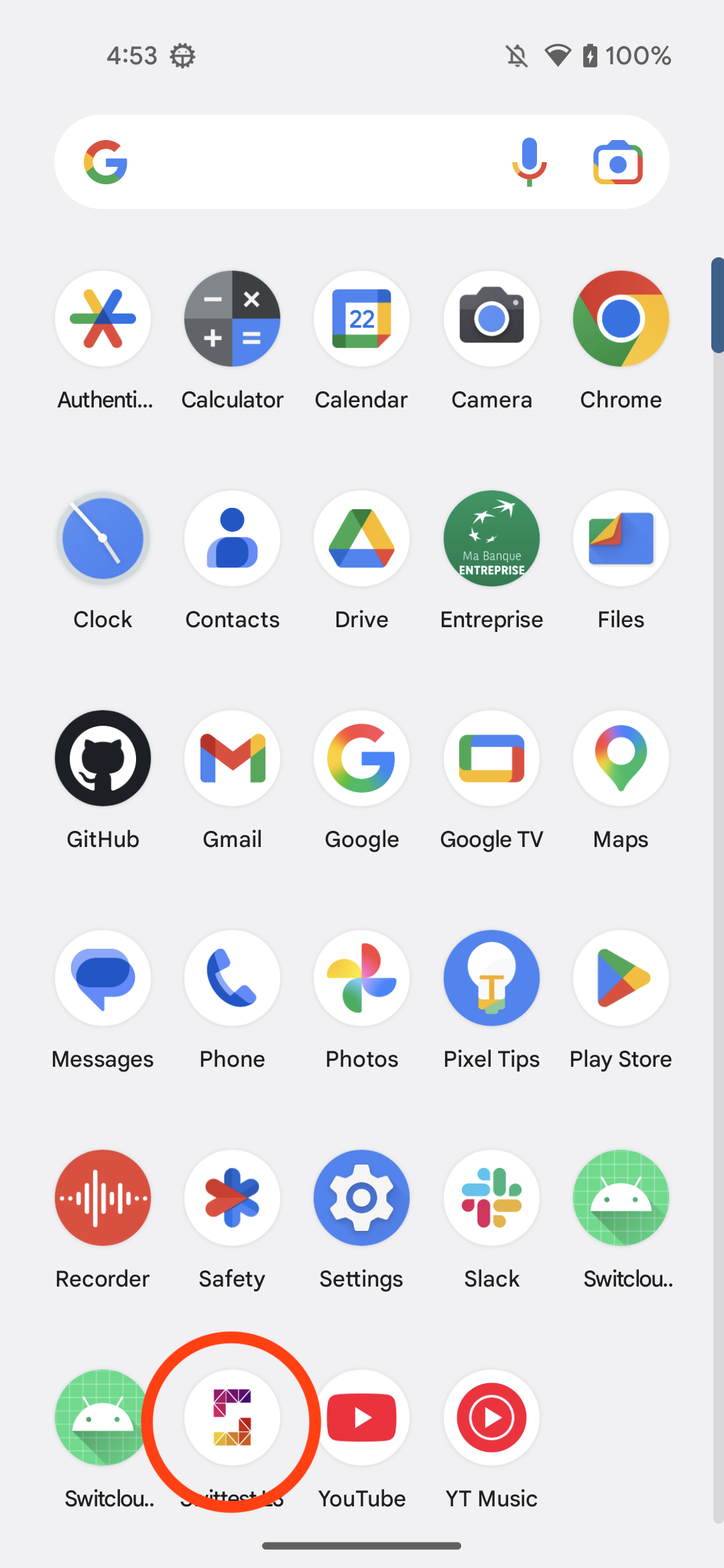
Launch the application once it is installed on the cell phone.
1.1.2 Welcome Screen
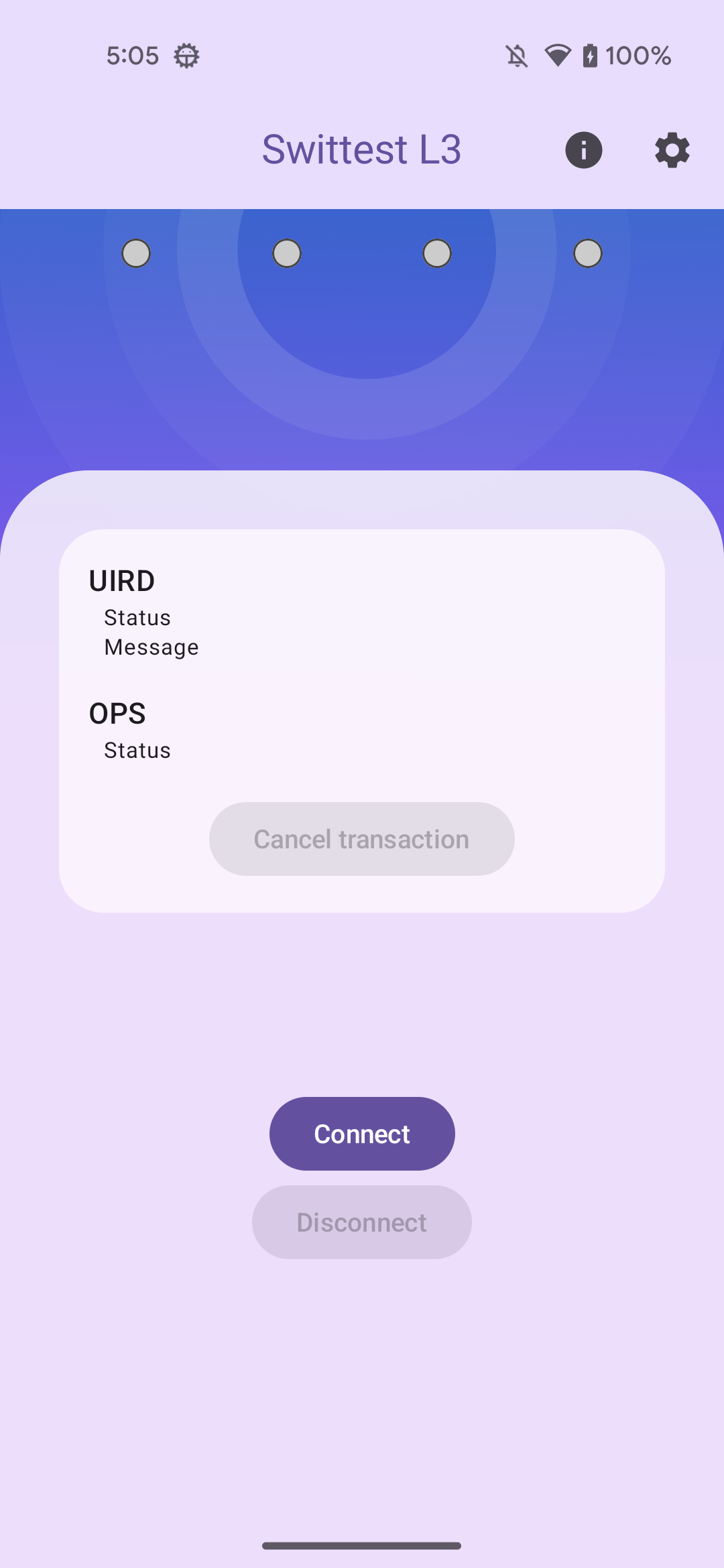
The welcome screen will appear after launching the application.
By default the application will try and connect to Swittest automatically using the default settings of the settings last used.
1.1.3 Settings Screen
You can view connection parameters by clicking on the "Settings" icon (gray cog) in the top-right corner.
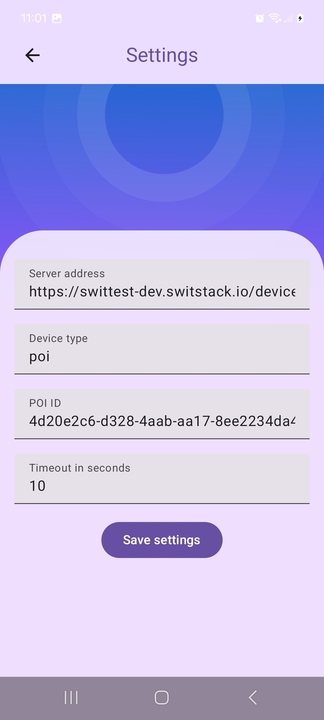
If you need to adjust the settings, make the necessary changes in the fields and tap "Save settings" to record them. If you simply want to leave the page, tap the "<" icon to exit without saving changes.
1.1.4 Connection
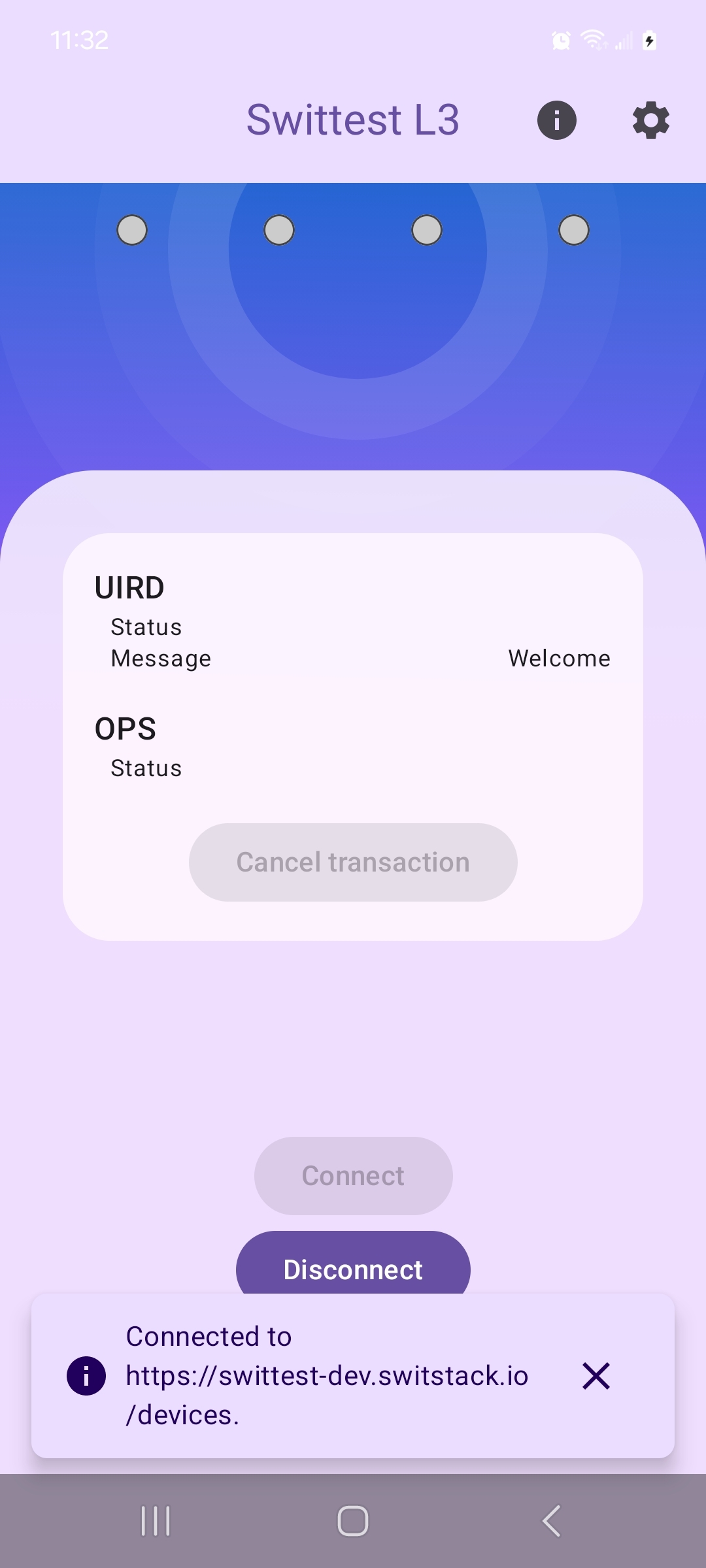
On the welcome page, if not connected already tap the "Connect" icon to establish a connection with the Swittest server. The connection status will be displayed at the bottom of the application screen.
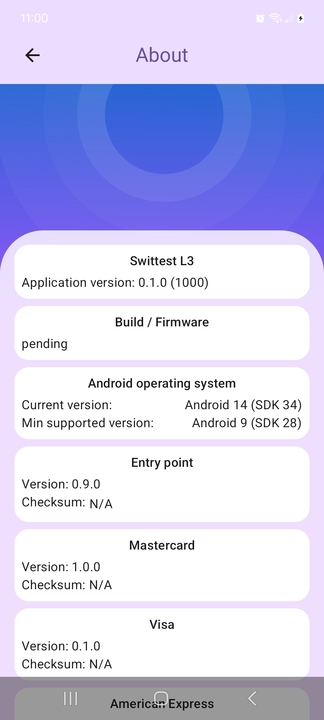
1.1.5 About / Info
By clicking the "Info" button (top-right of the screen), you can retrieve information about all modules and their versions.
1.2 Front-End
1.2.1 Access
Switstack host several instances of the Swittest service for customers, partners, etc... Please contact a Switstack representative to receive your access details.
1.2.2 User Guide
Please refere to the Frontend page.
1.2.3 Important Note For Lab Testers
Warning
The "Automatic" page is primarily made for developers doing regression testing. It is not meant to be used by labs during debug or certification sessions.
It is expected that a lab tester would create a test in the "Manual" page, configure it with the expected configuration and pre-conditions, run it and verify each post-condition manually.
At the very least, if a lab tester were to use the "Automatic" page (or duplicate some tests in the "Manual" page) for the sake of simplicity, the test pre-conditions should be double-checked and the automatic test verdict should absolutely not be taken into account.